
To maximize your account’s security, we recommend setting up a passkey. MFA helps protect your account if your password is compromised by requiring another authentication method when you sign in.
Tip: If you lost your passkey or need to reset your MFA for any reason, you can reset your MFA using your email.
Unchained supports multiple authentication methods:
- Passkeys (recommended): This security protocol requires a physical device, like a phone, computer, or Yubikey, to be present when you sign in. Passkeys are phish-resistant and account-takeover-resistant, and they are our recommended MFA option. You can add multiple passkeys to your account. Learn more about passkeys and why they are so powerful in our blog article.
- Authenticator apps (TOTP): An authenticator app such as Google Authenticator generates a time-based code that you enter after your password.
Note: When any passkey is enabled, passkeys are used for MFA when you sign in. If you enabled an authenticator app first, it remains on your account but is unavailable for sign-in while any passkey is enabled. If all passkeys are removed, the authenticator app becomes active again.
-4.png?width=670&height=498&name=image%20(5)-4.png)
How to add a passkey to your account:
Caution: Pay close attention to how you link your passkey. The method you select now will determine how you sign into the account in the future.
- Sign in to your Unchained account and click Profile on the left-side navigation bar. The Security tab opens by default.
- In the Passkeys section, click Add a passkey.
- The Add a passkey panel opens. Depending on your current MFA, you may first be asked to complete a security check.
- Click Next when prompted, then follow the instructions from your browser, device, security key, or passkey provider.
.png?width=200&height=306&name=image%20(8).png)
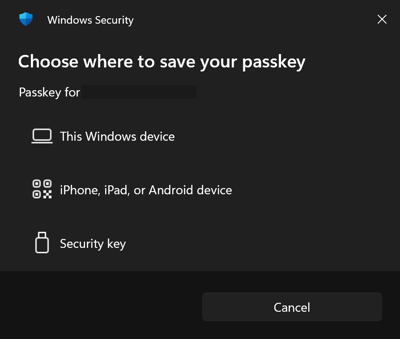
- Using phone/tablet: Choose the iPhone, iPad, or Android device option. Scan the QR code shown on screen. This will open up the passkey setup flow on your device. Follow the instructions on your mobile device.
- Using a hardware device: Choose Security key. Plug in your device. You’ll be requested to touch the device to register it as a passkey.
- Yubikey: Plug in your Yubikey and tough the metal contact point. We require Yubikeys to also use a PIN for additional protection.
- Trezor: Plug in your Trezor and unlock it with its PIN. Choose Confirm when prompted.
- Ledger: Plug in your Ledger and unlock it with its PIN. Download the Ledger Security Key app onto your Ledger. Open the app so it says the app is "ready." Confirm the creation of a new security key.
- Using a password manager or passkey app: You may be prompted to link your passkey to an installed passkey security app like 1Password, Proton Pass, or Keeper.
- Using iCloud Keychain: If using an Apple device, you may be prompted to use iCloud Keychain. This will utilize your biometrics (Face ID or Touch ID) or the device's passcode.
- Using Windows Hello: Choose This Windows device. This will utilize your biometrics (fingerprint or facial recognition) or the device's PIN.
- Success! Your passkey will appear in the Passkeys section. To add another, click Add another passkey and follow the on-screen instructions.
How to set up an authenticator app (TOTP):
Note: You can set up an authenticator app only if you don’t already have a passkey.
- Download an authentication app. There are several available, but apps we recommend include:
- Sign in to your Unchained account and click Profile on the left-side navigation bar. The Security tab opens by default.
- In the Authenticator app section, click Set up an app.
- Scan the QR code using your authenticator app. Your app will add a new item labeled “Unchained.”
.png?width=275&height=507&name=image%20(7).png)
- Enter the six-digit code shown in your authenticator app and click Enable TOTP.
- Success! TOTP is enabled, and you will be signed out. The next time you sign in, enter the code from your authenticator app.
Caution: If you use Google Authenticator, we recommend using it without a backup account. If your codes back up to your Google account, anyone with access to your Google account can also see your Authenticator codes.
- When you first open the app, tap Use without an account.
-
If you already saved codes to your Google Account, at the top right corner of the home screen, tap your profile picture, then tap Use Authenticator without an account.